
LEGO® Builder: 3D Instructions
LEGO System A/SEntertainment
4.85.65K Reviews
- Version
- 4.3.7
- Installs
- 10.00M
- Age Rating
- Everyone
Screenshots

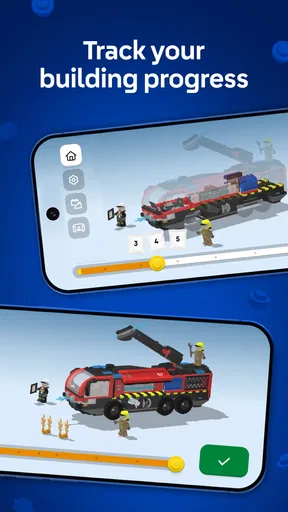
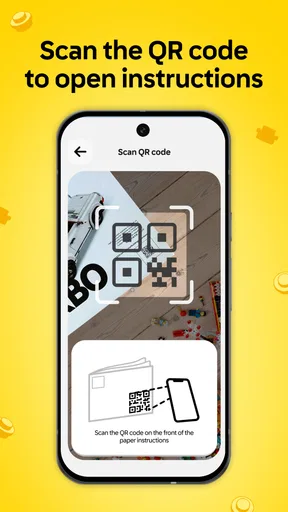

Our Review of LEGO® Builder: 3D Instructions
 Analysis by Appyee
Building a LEGO set is usually relaxing until the instructions become difficult to follow. A page can feel too small, a piece may look similar to another one, or a child may lose track of the step after taking a break. LEGO® Builder is designed to make that part of the hobby easier by turning the instruction experience into something more visual and interactive. I found it most useful when I wanted to inspect a complicated step rather than simply read a flat page and hope I had understood it correctly.
This is a free entertainment app from LEGO System A/S, aimed at everyone rather than at one particular age group. It has become a very popular companion for LEGO fans, with a 4.8 average from around 272 thousand ratings and more than 10 million installs. Those figures make sense to me: the app is focused, familiar, and directly connected to the practical moment when you are sitting in front of a pile of bricks.
Where the building experience usually gets stuck
I’ve found that the most frustrating moments often happen before the bricks even go together: a scan doesn’t recognize the set, the screen is hard to see, or the build has been left at an unclear stopping point. This section looks at those common snags and how I separate a setup issue from an instruction problem. Once the cause is clearer, the next heading focuses on a few simple checks I make before settling in to build.
Finding the correct set is the first real test
The app’s main promise sounds simple: scan a set, follow the build, and keep your progress organized. In practice, the first few minutes are where many people may hesitate. You need the correct set in front of you, enough light for scanning, and a device that can comfortably display the instructions. If the scan does not immediately recognize what you are holding, it is easy to assume the app is broken when the problem may be the angle, the box artwork, or the way the set is being presented to the camera.
I recommend starting with the set box or its instruction material in a bright, uncluttered area. Keep the camera view steady and avoid covering important artwork with your hand. This is not a complicated technical procedure, but it prevents the most common kind of false start: repeatedly trying to scan while moving the phone around too quickly.
If scanning is inconvenient, searching for the set inside the app can be a more comfortable route when that option is available for the item you own. The important point is not to spend too long forcing one method. The app is meant to get you to the building instructions, so switching from scanning to selecting the set manually can save time when the camera does not cooperate.
Three-dimensional instructions help, but they do not remove every ambiguity
Once I reached a building step, the strongest part of the experience was being able to examine the model from different angles. A printed page asks you to mentally rotate the object. A digital model lets you inspect the side, top, or rear view before placing the next piece. That is especially useful for small subassemblies that look correct from one direction but are actually reversed.
There is still a learning curve. Rotating a model too far can make it harder to remember the original orientation, and zooming in aggressively may hide the surrounding structure that helps you understand where a piece belongs. My preferred habit is to check the default view first, rotate only enough to confirm the connection, and then return to the original position before continuing.
This makes the app more helpful than a basic PDF viewer, but it does not turn every instruction into an automatic answer. You still need to compare the virtual model with the physical build in your hands. The advantage is that the comparison is quicker and more forgiving when the printed perspective is confusing.
Progress tracking is useful after interruptions
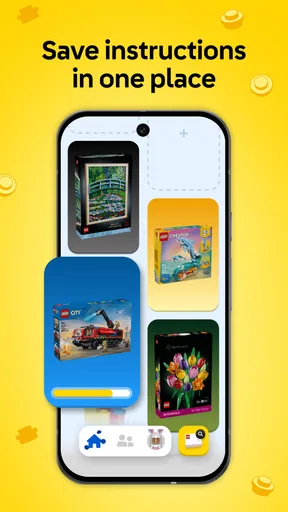
Tracking a build becomes valuable when a set is too large for one sitting or when several people share the same project. I particularly like the idea of returning to a build without having to remember exactly which instruction page was last completed. It changes the app from a one-time manual replacement into a small record of what you are working on.
That feature is most useful if you update your progress deliberately before putting the bricks away. If you stop halfway through a step and close everything, the saved position may not reflect the exact piece you were about to place. My practical rule is to finish the current instruction, mark the progress, and then pause. That creates a clean restart point and avoids rebuilding the same small section just to regain confidence.
Setup checks that prevent avoidable frustration
A little preparation can make the instructions feel much easier to use, especially when the set is being built at a crowded table or shared with someone else. I focus on practical details such as lighting, screen placement, and keeping similar pieces easy to distinguish, rather than treating every hiccup as a software fault. The following section turns to what I do when a build is already underway and something no longer matches.
Check the device before blaming the instructions
The current version is 4.3.7 and the app requires at least iOS or Android 8.1. That is a relatively accessible baseline, but an older device can still make a visual 3D experience feel less comfortable than it should. Before beginning a long build, I would update the app if an update is offered, close other demanding applications, and make sure the device has enough battery for the session.
A larger screen is not essential, but it changes the experience. On a small phone, the model can require more zooming and panning, while a tablet gives the instructions more breathing room. If a child is using the app, a tablet placed beside the build area can also reduce the temptation to hold the device over the bricks, where it is easier to bump or drop.
The app is free, so there is no purchase decision to make before testing it. That makes it practical to install it before opening a new set and see whether the device feels comfortable with the interface. I would not wait until a difficult step has already caused confusion to discover that the screen is too small or the device is running poorly.
Prepare the physical workspace as carefully as the digital one
Many apparent instruction problems are actually sorting problems. If several similar colors are mixed together under poor lighting, even a clear digital model will not make the correct choice obvious. I get better results by spreading the current group of pieces in a shallow, bright area and keeping completed sections slightly apart from unused parts.
This is one of the less obvious benefits of using digital instructions: because you can inspect the model from another angle, you can decide whether the difficulty is visual or physical. If the virtual connection is clear but the real part does not fit, stop and check whether the piece is the right shape, whether another element is already attached incorrectly, or whether the build is being held upside down.
It also helps to keep the device outside the main brick pile. A phone surrounded by pieces is harder to operate, and constant repositioning can make the model jump to an unhelpful angle. A stable stand or simply a clear space beside the build makes the app feel considerably smoother without changing anything inside the software.
Scanning works best as a starting point, not as a ritual
The scan option is convenient when it recognizes the set quickly, but I would not treat it as the only proper way to begin. Camera-based setup can be affected by reflections, dim rooms, damaged packaging, or an awkward viewing angle. If the app does not identify the set after a few sensible attempts, move on to another available way of locating it rather than turning setup into a separate project.
When a scan fails, try the simple checks first: clean the camera lens, improve the light, hold the item steady, and make sure the relevant artwork is visible. These are safe, general fixes that address the physical conditions around the device. They are also preferable to repeatedly force-closing the app or reinstalling it before checking whether the camera can see the item clearly.
Recovering a build when the workflow breaks
When the physical model and the screen stop lining up, I try to recover methodically instead of undoing a large section on impulse. A recognizable feature in the build can help me find the right point in the instructions, while checking one recent connection at a time limits unnecessary dismantling. The next heading considers a different possibility: sometimes the app is working as expected, and the source of the confusion lies elsewhere.
Use a known physical landmark to find your place again
Suppose you return to a set and the saved progress does not feel precise enough. The fastest recovery method is to identify a distinctive feature in the physical model: a visible window, a hinge, a wheel arrangement, or a colored section that appears only after several steps. Then compare that landmark with the digital instructions and move backward or forward until the surrounding structure matches.
This is more reliable than guessing from the number of pieces left on the table. Loose bricks can be misplaced, and bags can be opened out of sequence, while a completed structural feature gives you a much stronger reference point. I use the model itself as the source of truth and the progress record as a guide rather than assuming the saved position is perfect in every situation.
When a step looks wrong, isolate one change
A common mistake is to dismantle a large section immediately after noticing a mismatch. I prefer checking the most recent connection first. Compare the orientation of the last few pieces, rotate the digital model to the same viewpoint, and look for a difference in color, stud placement, or alignment. If the mismatch is small, removing only the latest piece or subassembly usually reveals the problem faster than taking apart everything.
The 3D view is particularly useful here because it lets you test a hypothesis. If you think a part is reversed, inspect the rear and underside of the virtual model before touching the physical build. If the views confirm your suspicion, the repair is targeted. If they do not, the issue may be an earlier step, and you can continue checking backward without creating unnecessary extra work.
Recover calmly after an interruption
For a family build, interruptions are normal. A child may leave the table, a meal may interrupt the session, or someone may accidentally move a group of pieces. I would save progress at a completed instruction and leave the current model in a recognizable position. If pieces have been moved, separate the parts used in the last completed step from the unused pieces before trying to continue.
This workflow matters because digital instructions can show you what should happen next, but they cannot know which loose pieces were mixed together on your table. The app handles the visual guidance; the builder still controls the physical organization. Treating those as two connected but separate tasks makes recovery much less stressful.
When the app is not the cause
A confusing step can come from an earlier misplaced piece, an awkward viewing angle, or a workspace that makes parts difficult to identify—not necessarily from the instructions themselves. I find it useful to compare the physical build with the digital model before deciding what to change, and to pause if the two still seem out of sync. The section that follows explains when another approach, including the printed manual, may simply suit the situation better.
A wrong build can begin several steps earlier
Not every confusing screen means the current instruction is unclear. A tiny error several steps back can change the orientation of an entire section, making later pieces appear impossible to place. When a step suddenly seems nonsensical, inspect the last point where the model still looked symmetrical or aligned. That is often more productive than staring at the current screen.
Digital rotation can expose this kind of mistake, but it cannot correct the physical model automatically. If the virtual and real builds disagree, trust the comparison rather than trying to force the next part into place. LEGO connections are designed to fit in specific ways; unusual pressure is usually a sign to pause and recheck.
Screen comfort and camera conditions matter
If the interface feels slow, difficult to read, or awkward to manipulate, the cause may be the device or the environment rather than the instructions. A dirty screen, glare from a window, low battery, or a crowded workspace can make a straightforward step feel more complicated. Moving the device, changing the viewing angle, or taking a short break can improve the experience more than repeatedly reopening the same instruction.
I also would not expect the app to replace every physical reference. For some builders, printed manuals remain easier for a quick glance, especially when the device is needed for something else or when the build area is dusty and crowded. The digital version is strongest when you need rotation, closer inspection, or a convenient way to resume a project. It is not automatically better for every person or every session.
Who should choose a different approach?
People who prefer a completely screen-free hobby may find the app distracting. The same applies to builders who already feel comfortable with printed instructions and do not need to inspect models from multiple angles. If you are working in a place where keeping a phone or tablet nearby is inconvenient, the traditional manual may be the simpler choice.
It may also be less suitable for someone expecting a full creative playground or a game-like experience. This is an entertainment app centered on LEGO building guidance and build organization, not a replacement for the physical sets themselves. Its value depends on having a compatible building project and wanting help with the instruction process.
For parents, the Everyone age rating makes it a straightforward option to consider for shared building sessions. Still, younger children may need help with scanning, rotating the model, and keeping the device safe beside the bricks. The app can make instructions clearer, but it does not remove the need for supervision when small pieces and expensive electronics are on the same table.
My practical verdict after using it
I see LEGO Builder as a useful companion rather than a mandatory upgrade. Its best quality is not simply that the instructions are digital; it is that the model can be examined from viewpoints that printed pages cannot provide. That difference becomes meaningful when a build has mirrored sections, hidden connections, or a small part whose orientation is difficult to judge.
The combination of set scanning, visual guidance, and progress tracking also gives it a sensible everyday role. Imagine starting a build after dinner, completing several sections, and needing to clear the table before bedtime. Saving at a finished step means you can return later without relying on memory. If a family shares the project, the same record can help the next person understand where to continue.
My main reservation is that the app adds another layer to a hobby many people enjoy precisely because it is tactile and uncomplicated. Scanning can occasionally slow the beginning, a small screen can make model manipulation less comfortable, and digital progress is only as useful as the habit of saving it at sensible stopping points. These are manageable limitations, but they are worth knowing before assuming the app will solve every building problem.
The developer, LEGO System A/S, has kept the concept focused, which I appreciate. Rather than burying the instructions under unrelated entertainment, the app stays close to the moment of building. The result is most convincing for medium or complex projects, shared family builds, and anyone who has ever had to dismantle a section because a piece looked right from the wrong angle.
At no cost, with an Everyone rating and support for devices running at least iOS or Android 8.1, it is easy to try alongside a set you already own. My recommendation is to install it before the build begins, test the scanning or set-selection process, prepare a well-lit workspace, and save progress only at clear stopping points. If you want digital instructions that help you inspect, resume, and troubleshoot a physical LEGO build, this is one of the more practical tools to keep nearby.
Verdict
Strengths of LEGO® Builder: 3D Instructions
- Interactive 3D steps make complex builds easier to follow.
- Supports many LEGO sets through set-number searching.
- You can rotate and zoom models from any angle.
- Progress tracking helps you resume builds later.
- Available on both Android and iOS devices.
Limitations of LEGO® Builder: 3D Instructions
- Not every older or specialty set may have digital instructions.
- Large models can take time to load on older devices.
- Requires a compatible LEGO set for its main purpose.
- Frequent screen interaction may interrupt hands-on building.
- Some features may require an active internet connection.
Other Releases by LEGO System A/S
View All
LEGO® Play
Entertainment4.5

LEGO® Insiders: Shop & Rewards
Shopping4.8
Similar Picks in This Category
View All
Google Play Games
Google LLC3.9

Netflix
Netflix, Inc.4.8

YouTube Kids
Google LLC4.2

Disney+
Disney4.4

Prime Video
Amazon Mobile LLC4.7

Steam
Valve Corporation3.2
Frequently Asked Questions
What is LEGO® Builder, and what can I do with it?
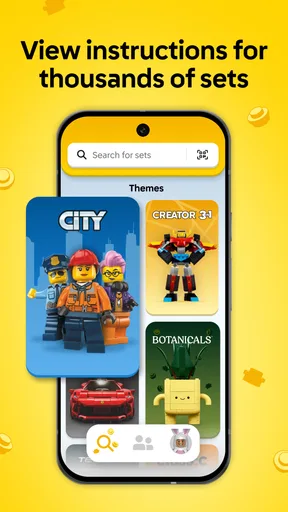
LEGO® Builder is the official companion app for viewing digital building instructions for many LEGO sets. Instead of using only a paper booklet, you can rotate, zoom, and explore three-dimensional models while building. The app also lets you search for sets, save them in your collection, and, on supported instructions, follow a more interactive building experience designed to make complicated steps easier to understand.
Does LEGO® Builder work with every LEGO set?
Not necessarily. The app supports a large and growing selection of LEGO sets, but some older, promotional, limited-edition, or specialized products may not have digital instructions available. Before downloading, it is worth checking whether your specific set can be found by its number or name. If it is unsupported, you may need to use the original printed booklet or download a standard PDF instruction file from LEGO’s official website.
Do I need an internet connection to use the building instructions?
An internet connection is generally needed when searching for sets, downloading instructions, signing in, or synchronizing your saved collection. After the relevant content has been downloaded, some instructions may remain available for offline use, which is convenient when building away from Wi-Fi. Availability can vary by device and content, so downloading the instructions in advance is recommended if you expect to build without internet access.
Is LEGO® Builder suitable for children, and is it free to download?
LEGO® Builder is free to download and is designed to support LEGO fans of different ages, including children who can already follow building instructions. Its visual controls are straightforward, although younger builders may still benefit from adult supervision, especially with small pieces. The app does not replace safe play practices, and parents should review account, privacy, and device settings before allowing children to use it independently.
What devices and features are required for the 3D instructions?
The app is available for compatible Android and iOS devices, but the exact experience depends on your phone or tablet’s operating system, screen size, performance, and available storage. The 3D instructions require a device capable of running the current app version smoothly. Features such as rotating models, zooming, progress tracking, and saving sets may also differ slightly depending on the set and the version installed.
